نصائح عدم التحديث لهذا الاصدار الان .
لان التحديث يصاحبه بعض المشكله في الشبكة و البصمة و ع كل من حدث الرجوع الي الاصدار الاسبق فالدونجريد مزال مفتوح.
If you’ve hit the
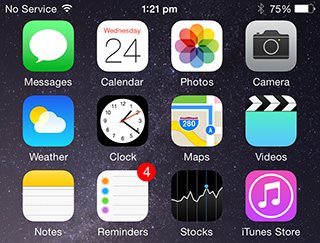
“No Service” or Touch ID issue after upgrading to iOS 8.0.1, then you need to install the iOS 8.0 update manually to fix the issue.
How to install iOS 8 update using iTunes:
Before you plug in your iOS device. take a moment to make sure you are using the latest version of iTunes. Click on iTunes in the menu bar and then click on “Check for updates.”
Once iTunes is all squared away, it’s time to turn your attention to your iOS device and follow these instructions:
Download iOS 8.0 firmware file:
Download the iOS 8.0 firmware file for your iOS device:
iPad:
iPhone:
- iPhone 5s (Model A1453, A1533)
- iPhone 5s (Model A1457, A1518, A1528, A1530)
- iPhone 5c (Model A1456, A1532)
- iPhone 5c (Model A1507, A1516, A1526, A1529)
- iPhone 5 (Model A1428)
- iPhone 5 (Model A1429)
- iPhone 4s
- iPhone 6 Plus: iPhone7,1_8.0_12A366_Restore.ipsw
- iPhone 6: iPhone7,2_8.0_12A365_Restore.ipsw
iPod touch:
Install iOS 8.0
Step 1: Connect your iOS device to your computer using an USB cable. Wait for iTunes to open and connect to your device.
Step 2: Click on device button to the left of the iTunes Store button in the top right corner in iTunes.
Step 3: Hold the Option key (Mac) or the Shift key (Windows) and click on the “Check for Update”.
 Step 4:
 Select the iOS firmware file which you’ve downloaded earlier.
Step 5: If you get a popup message informing you that iTunes will update your iPhone/iPad/iPod touch to iOS 8.0 and will verify with Apple. Click on the
Update button.
Step 6: It will then show you the release notes for iOS 8. Click on the
Next button. Then click on the
Agree button for the terms and conditions.
Step 7: iTunes will now download the firmware file (which can take a long time depending on your internet connection as it can be as big as 2.1GB). After downloading the file, it will process it, extract the software, prepare the device for software update, and install the update.
Step 8: Do not disconnect your device until the update has finished. It can take a few minutes. Your device will be updated to iOS 8.0 and reboot once or twice during the process. You will see while Hello screen after it is successfully update. Follow the on-screen instructions to start using the device.
Let us know how it goes. If you need help or have any questions, please use the
iOS 8 forums. It is the fastest way to get a response from us or someone from the community.



.gif)


 iOS 8.0.1 Download links


 رد مع اقتباس





المفضلات